


invideo AI: AI Video Generator
3.93.13K Reviews
App Specs
- Version
- 4.5.44
- Updated On
- License
- Free
- Downloads
- 5,000,000+
- Developer
- invideo INC
- Categories
- Video Players & Editors
- Platform
- Android, iOS
Screenshots
 Analysis by AppCompare
I find AI video tools most useful when I treat them as a first-draft partner, not as a substitute for deciding what a video should say. That distinction matters with invideo AI: AI Video Generator: it can help turn an idea into a sequence much faster than building every element from scratch, but the result still benefits from a human pass for accuracy, tone, and pacing. I’d consider it when I need a presentable starting point quickly, especially for short explainers or social posts, rather than when every frame needs careful, handcrafted control.
A practical workflow from prompt to publishable draft
I’d begin with one clear purpose and a small amount of source text. Instead of asking for a video about a broad topic, I’d describe the intended viewer, the single point they should remember, and the action or conclusion the video should leave them with. That gives the AI a more useful brief and makes it easier to spot whether the generated sequence has wandered away from the point.
Once the first version appears, I’d review it in passes rather than trying to perfect everything at once. First check the story: does each scene move the explanation forward? Then check the words and visuals for factual accuracy and fit. Only after those are settled would I spend time adjusting presentation details such as colors and fonts. This order avoids polishing a scene that may need to be replaced altogether.
A realistic use case is a small business owner who has a few notes about a new service and needs a short introduction for a social channel. The app can help shape those notes into a video draft, while the owner supplies the specific details that only they know: what the service actually includes, who it is for, and what viewers should do next. I would still watch the finished video from beginning to end before sharing it; generated wording can sound smooth while missing a qualification that matters.
Small checks that prevent bigger edits
Before settling on a template, I’d think about where the video will be watched. A design that feels balanced on a larger screen may be less readable on a phone, where many viewers encounter social content. Keep the central message easy to follow, and avoid letting decorative choices compete with the key words. The app’s customization options are useful, but the strongest edit is often the one that removes distractions instead of adding more styling.
I’d also check the text against the visuals scene by scene. If the words make a claim that the image does not support, or the image suggests something the narration never explains, the mismatch can make a polished draft feel untrustworthy. For an educational or product video, I’d use the preview as an editorial checkpoint: pause where the subject changes, confirm that the scene still fits, and rewrite any line that sounds more certain than the facts allow.
One useful habit is to keep a short, reusable brief outside the app for recurring projects. It can contain the audience, preferred tone, spelling of names, and phrases that should remain unchanged. Reusing that brief gives each new draft a steadier voice and reduces the chance of fixing the same details repeatedly. This is a workflow choice rather than a hidden feature, and it works especially well for people making several related videos.
Worth Reading Before You Choose

Flipboard Shows What News Apps Must Do Beyond the Feed

Switching to Android Auto Means Rethinking Your Driving Routine

Google Calendar Makes a Crowded Week Easier to Manage

Ludo King Makes the Most of the Minutes Between Plans

Baby Panda World Brings Quick Play to Modern Phones, but Its Game Library Feels Busy

ESPN’s Live Game View Makes Following Close Games Easier
Where AI drafting helps—and where it does not
Compared with a conventional mobile editor, which usually expects you to choose and arrange footage yourself, invideo AI puts more emphasis on generating a draft from text. That can be a real advantage when you have a message but no edit mapped out yet. A traditional editor is often the better fit when you already have exact clips, need precise timing, or want to make a carefully controlled cut from your own material. The two approaches solve different problems, so I’d choose based on whether the hard part is starting the story or finishing a detailed edit.
There is also a trade-off in accepting AI’s first structure too readily. A sequence can look complete before it is genuinely persuasive: repeated ideas, abrupt changes, or generic imagery may be less obvious when you are focused on the design. I’d read the script aloud and ask whether each section earns its place. If the video is intended to explain something sensitive, technical, or important to a customer, I would treat factual review as essential rather than optional.
For a beginner, the central question is whether the app can be used without editing experience. Its straightforward layout and demo video make it approachable, and the text-led creation process offers a practical way into video making. The next question is whether the result can be personalized. Templates and controls for visual styling give you room to shape a draft, though anyone aiming for frame-by-frame precision may find a dedicated editor more comfortable. I’d also plan around the free entry point: the app is free to download, while in-app purchases range from $9.99 to $1,440.00 per item, so check the purchase details before committing to paid options.
For someone deciding whether to try it, the audience is fairly clear to me: creators who need a quick concept, teachers preparing a simple visual explanation, or small teams that want to turn written material into a video draft. It is less suited to a filmmaker who wants full manual control from the first cut, or to anyone who cannot spend time reviewing AI-generated wording and visuals. A fast draft is only valuable if it is still accurate and appropriate for the people who will see it.
Hey there! So, I recently got my hands on this cool app called invideo AI: AI Video Generator, and I’ve gotta say, it’s pretty impressive. If you’re into creating videos but don’t have a ton of time or technical skills, this app might just be your new best friend.
Getting Started with Ease
The first thing I noticed when I opened invideo AI was how user-friendly it is. Seriously, even if you’re not tech-savvy, you’ll find your way around in no time. The interface is clean and intuitive, making it super easy to dive right into creating your first video.
Signing up was a breeze. Just a couple of taps, and I was ready to explore. The app offers a demo video to help you get started, which is a nice touch if you’re new to video editing or AI tools. It’s like having a mini-tutorial right at your fingertips.
Features That Stand Out
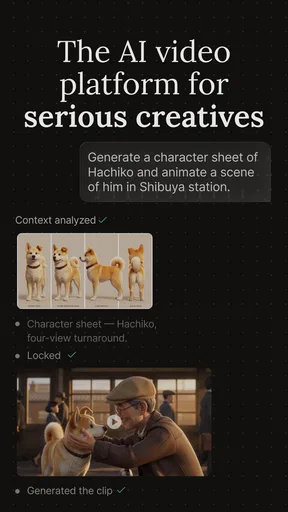
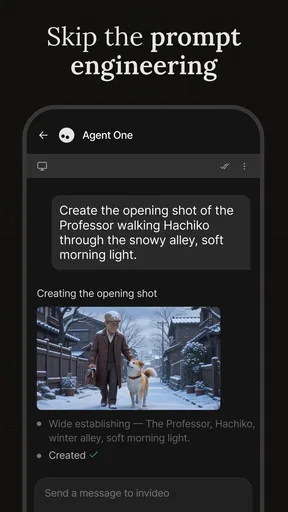
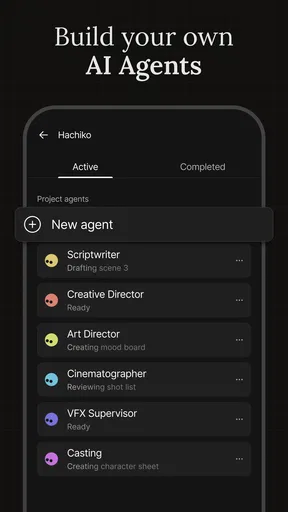
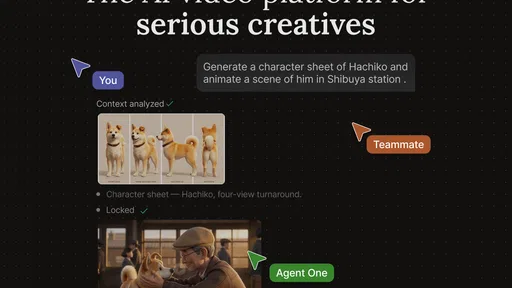
Okay, let’s talk features, because this app isn’t short on them! One of the standout features is its AI-powered video creation tool. You simply input your text, and the app magically transforms it into a video. It’s like having a personal assistant that handles the heavy lifting for you.
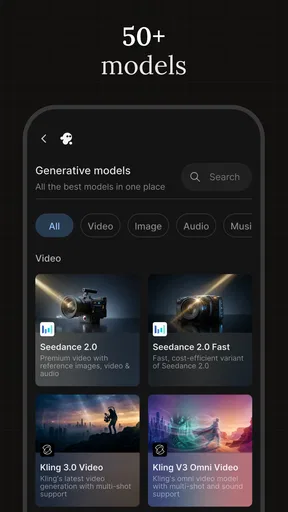
Another cool feature is the variety of templates available. Whether you’re creating content for social media, a presentation, or just for fun, there’s a template that’ll suit your needs. And if you’re worried about the final product looking generic, don’t be. The customization options are pretty robust, allowing you to tweak colors, fonts, and more to match your style.
Performance and Usability
Now, let’s chat about performance. One thing I really appreciated about this app is how smoothly it runs. I didn’t experience any lag or crashes, which is a huge plus in my book. The videos render quickly, so you’re not stuck waiting forever to see your masterpiece come together.
As for usability, the app is incredibly straightforward. The drag-and-drop feature makes adding elements to your video a piece of cake. Plus, the timeline is easy to navigate, so you can effortlessly arrange clips and transitions.
Who’s It For?
So, who would benefit most from using invideo AI? Honestly, just about anyone. Whether you’re a content creator, marketer, educator, or just someone who loves sharing videos with friends, this app has something to offer. It’s perfect for those looking to save time and effort while still producing high-quality content.
But it’s not just for beginners. Even if you’re a seasoned pro, you’ll find the AI features a handy addition to your toolkit, speeding up your workflow and sparking creativity.
The Final Verdict
In conclusion, I have to say I’m pretty impressed with invideo AI. It’s packed with features, easy to use, and delivers on its promises. Whether you’re looking to create professional videos or just want to have some fun, this app is definitely worth checking out. So why not give it a try? You might just find it’s exactly what you’ve been looking for.
What to expect from the app over time
Because a text-to-video tool can make an early draft feel finished, I’d build a repeatable review routine into every project. I would check names, figures, dates, and any claims against the original notes, then listen for awkward phrasing and inspect whether the visuals support the point. This matters especially for educational clips and promotional material, where a small error can distract from an otherwise good presentation.
The app is listed in the video players and editing category, is developed by invideo INC, and has a 4.2 average from around 129,000 ratings, with more than 5 million installs. It is rated Teen, and its current version is 4.4.28. Those details give a sense of its established audience, but they do not remove the need to test your own workflow: a useful tool for a quick first draft may not be the right editor for a project with exact visual requirements.
Habits that make repeat projects easier
If I were making a series, I would keep a simple style note with the wording and visual choices I want to reuse. I’d also save clean source text separately from the finished script, so I can revise the message without losing the original meaning. That small separation helps when the generated version is catchy but has compressed an important detail. It also makes it easier to create a shorter or longer variation without starting from a muddled draft.
For a recurring weekly update, for example, I’d write the new information first, then use the same audience and tone in the brief each time. After generation, I’d compare the opening and closing against previous installments so the series feels consistent without repeating entire scenes or claims. This is a practical way to gain speed while still making each video specific to the week’s material.
Choosing it with realistic expectations
In the broader video-editing category, invideo AI sits closer to an idea-to-draft assistant than a traditional timeline editor. That distinction is the key to deciding whether it suits you. When blank-page friction is the main obstacle, text-based generation can help you get moving. When the edit depends on exact footage, tight sound timing, or detailed shot-by-shot decisions, a conventional editor gives you a more direct path and more predictable control.
I would not judge the app only by how quickly its first version appears. The useful measure is how much work remains before the video is safe and clear to share. If your source is well organized and the subject is straightforward, the draft may save meaningful setup time. If the material is nuanced or the desired look is highly specific, expect to spend longer correcting structure and presentation. That is not a reason to avoid AI assistance; it is a reason to use it where it actually reduces effort.
My considered recommendation
For an Android user who wants to turn written ideas into videos without learning a complex editing workflow first, I think this is a sensible app to try. It is free to download, though optional purchases can be substantial, so I would explore the basic experience before deciding whether any paid item is worthwhile. The minimum operating-system requirement is version 11, which is worth checking before installing.
My recommendation is strongest for people who value a quick starting point and are willing to refine what the AI produces. I would skip it if I needed an editor built around precise manual control, or if I wanted to publish generated material without reviewing it carefully. Used with a clear brief, a scene-by-scene check, and sensible expectations, invideo AI can make video creation less intimidating; used as a one-tap replacement for editorial judgment, it is much less convincing.
Pros
- User-friendly interface for beginners.
- Wide range of templates available.
- Fast video rendering process.
- Supports multiple video formats.
- Offers collaborative editing tools.
Cons
- Requires a stable internet connection.
- Subscription needed for full features.
- Limited free version capabilities.
- Occasional AI editing errors.
- Lacks advanced customization options.
FAQs for invideo AI: AI Video Generator
What is InVideo AI: AI Video Generator and how does it work?
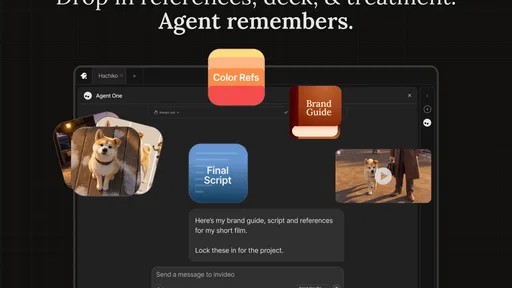
InVideo AI is a powerful video creation tool that leverages artificial intelligence to help users create stunning videos effortlessly. The app provides a user-friendly interface where you can upload images, video clips, and audio, and utilize AI-driven features to edit and enhance your content. With a variety of templates and customization options, it simplifies video production for both beginners and professionals.
Is InVideo AI suitable for beginners with no video editing experience?
Yes, InVideo AI is designed with beginners in mind. It offers an intuitive drag-and-drop interface and a plethora of templates that make video editing straightforward. The AI-driven suggestions and automated editing features allow users with no prior experience to create professional-quality videos with ease. Tutorials and support are also available to guide new users through the process.
What are the main features of InVideo AI?
InVideo AI boasts a range of features including a vast library of templates, music tracks, and stock footage. It provides AI-powered editing tools, text-to-video capabilities, and automatic voice-overs. Users can also add animations, transitions, and effects to enhance their videos. Additionally, the app supports multiple languages, making it versatile for global users.
Are there any limitations or drawbacks to using InVideo AI?
While InVideo AI offers many features, some users may find limitations in the free version, such as watermarked exports and restricted access to premium templates. Additionally, advanced users might desire more manual control over editing, as the AI-driven features can sometimes limit customization. Subscription plans are available to unlock full capabilities.
How does InVideo AI handle data privacy and user security?
InVideo AI prioritizes user privacy and data security. The app employs industry-standard encryption to protect user data and adheres to privacy regulations. Users can create and manage their content confidently, knowing that their information is secure. It’s advisable to review their privacy policy for detailed insights into data handling practices.


